
Enterprise AI
Can a Computer-Use Agent Safely Operate Your Legacy ERP?
Computer-use agents can click through legacy ERP clients with no API. Let them query and save drafts; keep posting and master data edits behind human approval.

A computer-use agent can operate a legacy business system that has no API. Its reliability depends on a permission ladder and on where humans confirm. The agent reads the screen and clicks through forms, so the company has to separate three kinds of action: looking up data, filling in data, and making a record take effect. Read-only queries and draft entry can run without supervision. Formal submission, accounting postings, and master data changes need a human to review and approve. Run the agent under a dedicated account, keep it in a test environment until it is proven, and screenshot every step.
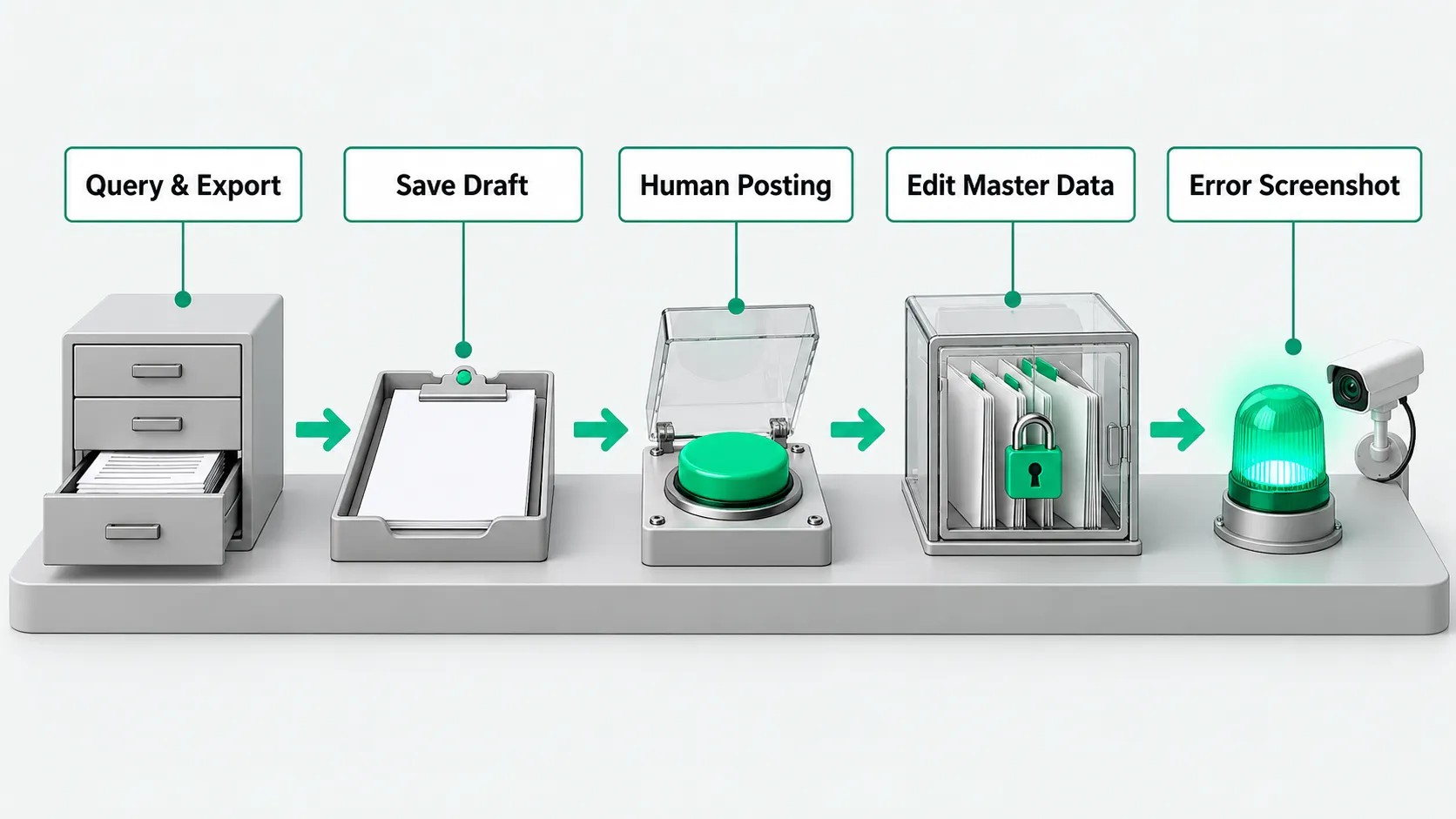
Query and export: read the legacy UI and pull reports
When a legacy business application has no API, the model uses visual grounding to find the menu tree, search box, and data grid. It enters a material code or order number, clicks Search, waits for the client to respond, and reads the text and numbers on screen. For multi-page tables, it scrolls, takes screenshots, parses them into a standard table, and saves the file locally. For the order in which to grant agent permissions, see Agent Permission Management: How to Set Tool Access Levels and What to Grant First.
Business staff issue the query instructions and spot-check the data. Read-only actions do not change underlying records, so they are low risk. A staff member enters the lookup targets in the back end, and the system pulls and consolidates data across modules. After the export, the staff member checks that the grand total and the line count match.
Save draft: simulate keyboard and mouse input and validate formats
The system reads the text of an invoice, delivery note, or request form. It locates each input field, enters the material code, specification, unit, and unit price, and tabs between fields. The model validates required fields, dates, and field lengths, then clicks Save Draft. The document stays in draft status. It creates no journal entry and updates no ledger.
After filling the form, the model generates a checklist that compares the source document with the on-screen entries line by line, for a human to verify. For how to test this before connecting to a live system, see Agent Test Environment: Use Synthetic Data Before Connecting a CRM?.
Submit and post: leave actions that move money to a person
When a document takes effect, it creates receivables or payables, changes asset balances, and feeds tax filings. That makes it a high-risk action. After the model enters the draft, it sends a review request to the clerk who prepared the document, with screenshots and line details attached. Once the clerk confirms the details, a person clicks Post or Submit in the UI.
The person handling the transaction and the finance supervisor control submission rights. If the system needs the model to click Submit, the model takes the next mouse action only after it receives a one-time verification code or an internal-network confirmation from the person handling the transaction. The system cannot skip human review and post in bulk on its own.
Edit master data: run in a dedicated, controlled virtual desktop
A wrong master data entry causes knock-on errors across downstream processes. When desktop automation is used for bulk edits, it runs in a dedicated virtual desktop and logs in with a restricted account. Before the run, a designated staff member imports an approved change list. The model makes each change, saves a screenshot, and then runs a query to confirm the result.
The master data manager reviews the approval document, on paper or electronic, and only then grants the dedicated account temporary write access. When the bulk change finishes, the staff member revokes write access right away and pulls the audit log to check for unexpected changes.
Error pop-ups: stop, screenshot, and alert a person
Legacy clients often throw unexpected dialogs because of memory leaks, connection timeouts, or database deadlocks. If the model cannot identify a pop-up from its predefined rules, it must not click OK or Cancel at random. A wrong click can close a document by mistake or force the client to quit and corrupt data. When the program detects an unexpected pop-up, it saves a full-screen, high-resolution screenshot and the action log, sends an alert to the IT operations team, and exits.
An IT operations engineer reviews the screenshot to find the cause. If it was a transient network stall, a person exits the client manually. If the input data was in the wrong format, the engineer tells the business team to correct it. Action logs and screenshots are archived long term for later audits.
Computer-use agents: FAQ
Why shouldn’t a computer-use agent log in to a legacy ERP with an employee’s personal account?
If something goes wrong under an employee’s account, nobody can establish responsibility. If the system deletes a document by mistake or posts an entry it should not, internal audit cannot tell whether the employee made an error or the model clicked the wrong spot. The company should request a separate system account for the automation and restrict the modules it can use in the back end. Archive every login time, network address, and keystroke trace for that account separately so the records can be audited.
Legacy desktop software often lags or changes resolution. How do you keep screen recognition stable?
Three measures keep recognition stable. First, run the agent in a fixed, dedicated virtual desktop or industrial PC, and lock the screen resolution, font scaling, and system theme so the environment does not drift. Second, after each click, wait until the loading animation ends and the next input field becomes active before typing. Third, set a timeout for each step. If the UI does not respond in time, the agent stops and raises an alert instead of clicking around or retrying blindly.
When should a manufacturer consider replacing its existing RPA bots?
Consider replacing RPA where the work involves parsing unstructured information or adapting to complex interfaces. Traditional rule-based bots rely on fixed screen coordinates or low-level control handles. When the legacy software is upgraded, a dialog layout changes, or the bot has to handle handwritten scanned forms, these scripts tend to break often. Newer vision-based approaches read the semantic layout of the screen. They hold up better than coordinate-based scripts when the UI changes slightly or the resolution shifts. For stable back-office transfer tasks that are purely rule-based, high-volume, and run on an interface that has not changed in years, existing RPA bots still work reliably, and there is no need for a wholesale switch.