
AI Safety
How to Run a Private Codex Gateway for Your Company on Official API Keys
Run a private Codex gateway on official API keys: deploy LiteLLM with Docker Compose behind HTTPS, issue one key per employee with budgets, and log usage.
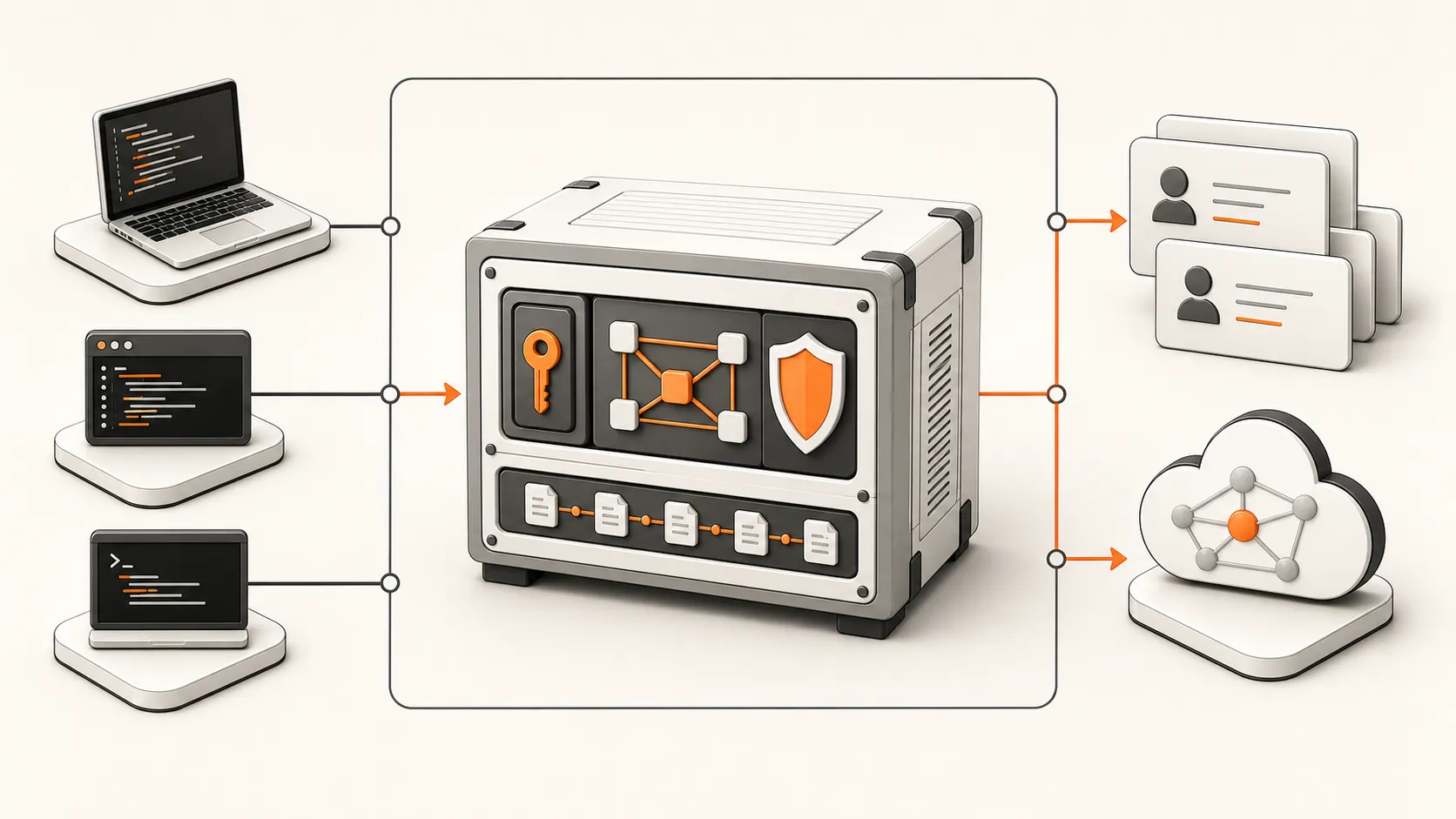
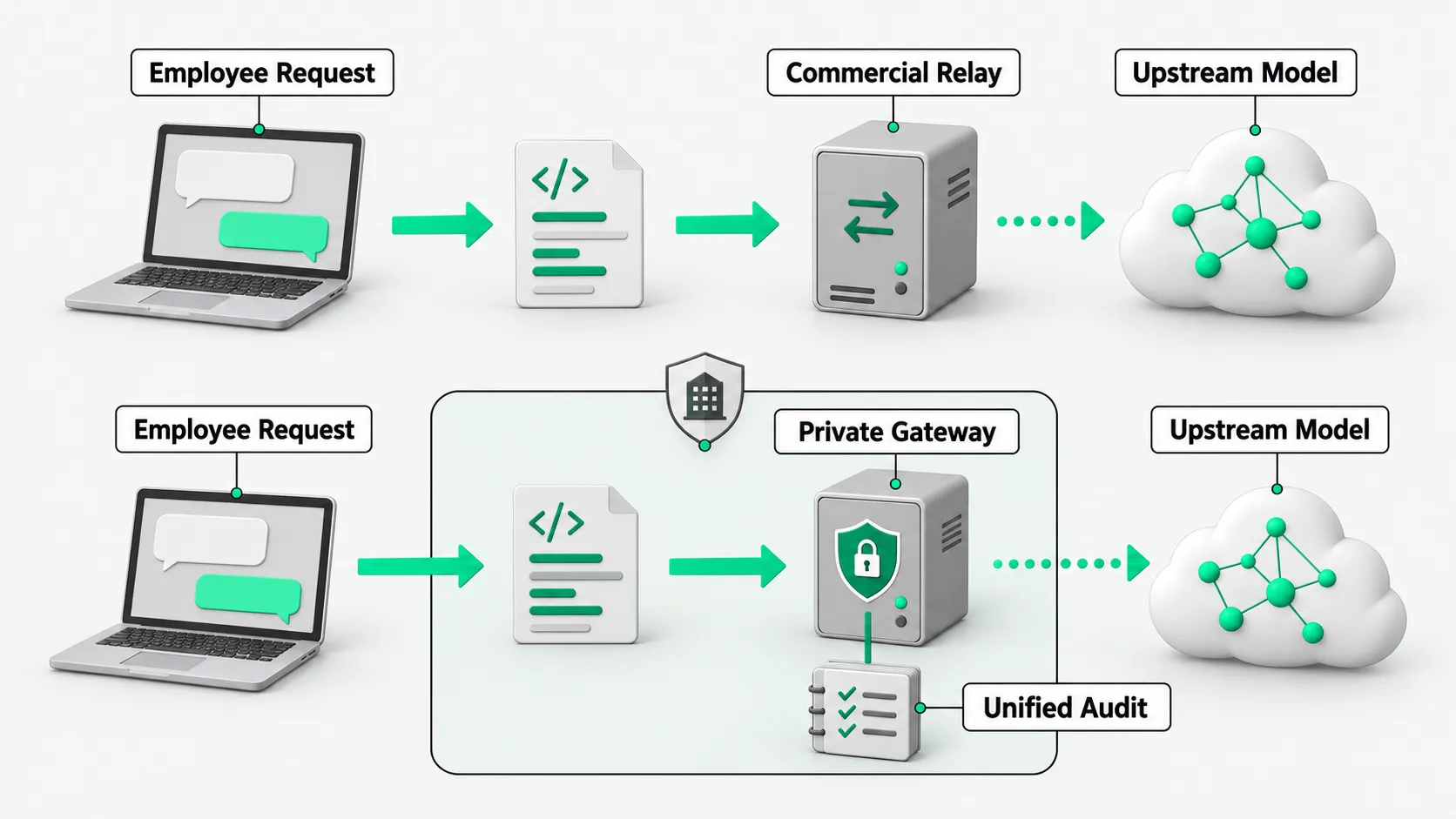
A self-hosted gateway keeps employee keys, quotas, and access logs on infrastructure the company controls. Prompts and code context no longer pass through a commercial relay provider, meaning a third-party service that resells model access. Requests still go to OpenAI. A self-hosted gateway removes a party from the middle of the path. It does not change how the upstream provider handles data.
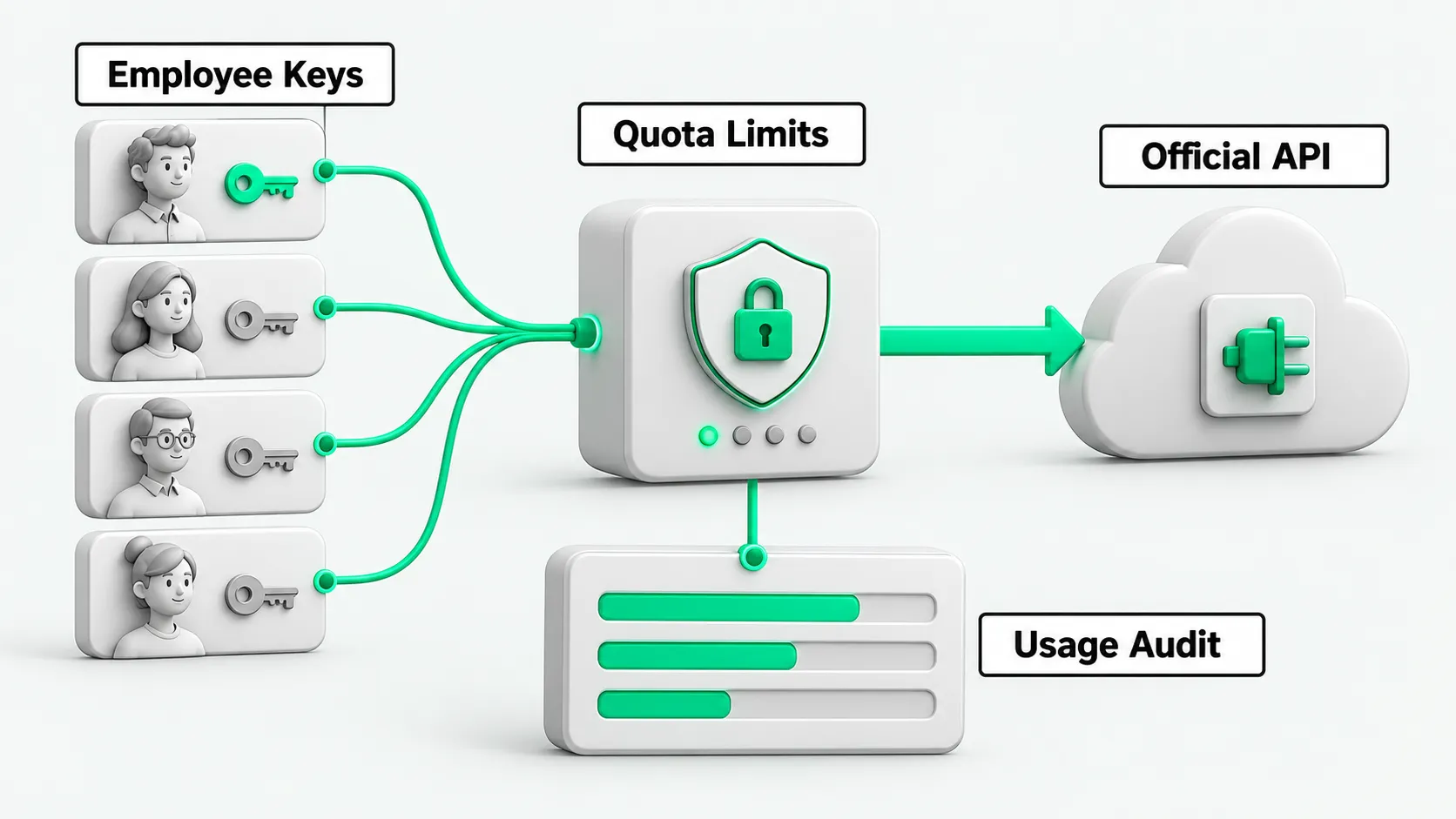
This guide uses the company’s own OpenAI API key as the only upstream. Employees never see that key. Each employee gets a gateway key that the company can limit, audit, and revoke.
The gateway here is LiteLLM, an open-source proxy that exposes one OpenAI-compatible endpoint and issues virtual keys with budgets and rate limits. Coding tools such as Codex CLI can connect to it.
1. Choose an upstream account
Pick one of two official routes before you build anything.
- OpenAI API key. Create a project in the OpenAI API platform and generate a key for the gateway. Usage is billed per token to the company. This is the route the gateway in this guide serves.
- ChatGPT Business or Enterprise seats. Each employee signs in to Codex with a company seat. Admin controls live in the ChatGPT workspace, so you may not need a gateway at all.
Do not connect personal ChatGPT Plus or Pro subscriptions to a shared gateway. Those plans are for individual use.
2. Provision a server
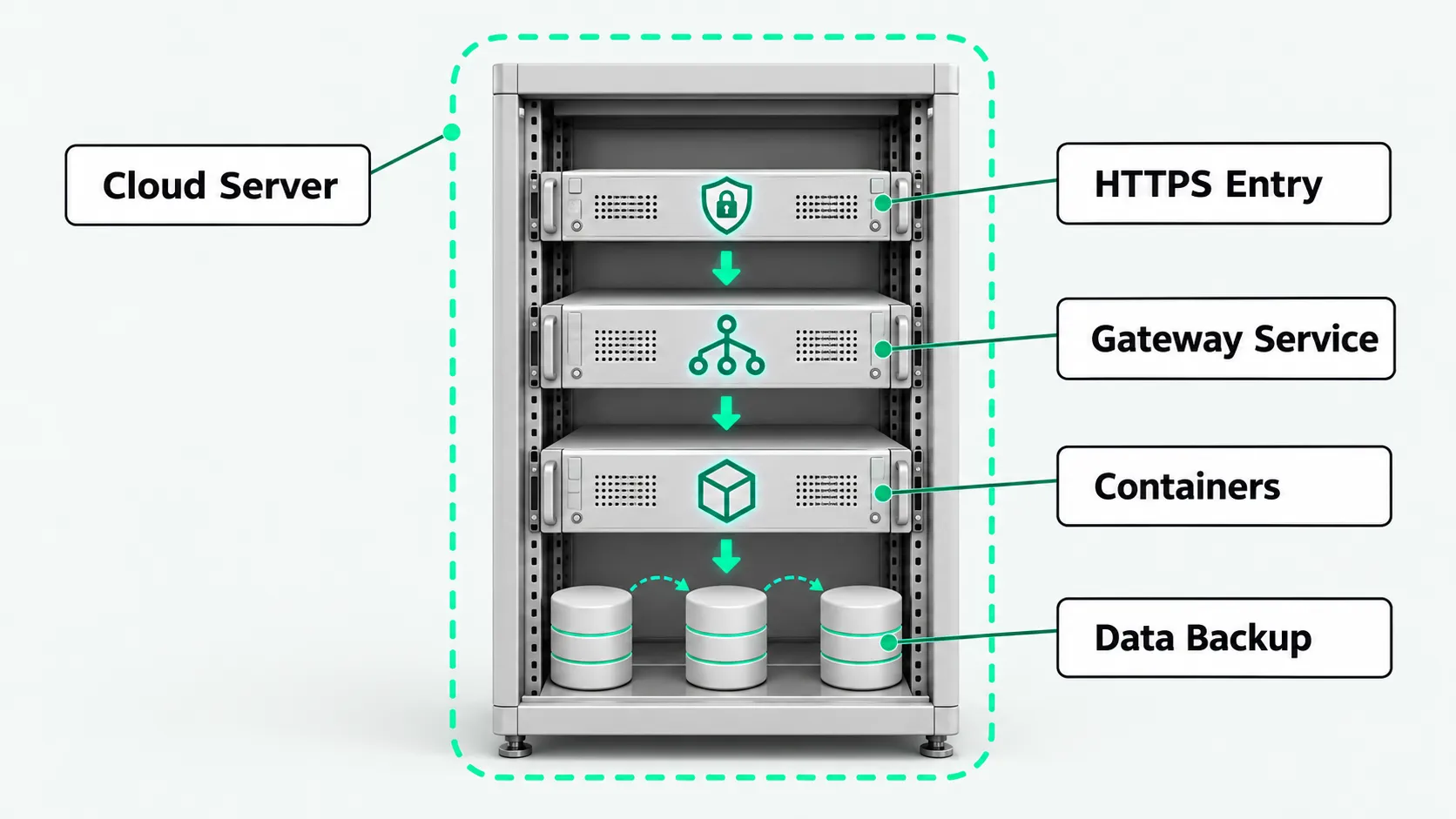
Use a cloud VM in a region close to your team and in a country where OpenAI supports API access. Minimum spec: 2 vCPU, 4 GB RAM, 50 GB SSD.
Open only SSH and HTTPS to the internet. The gateway’s own port stays behind the reverse proxy.
apt update && apt upgrade -y
ufw allow 22/tcp
ufw allow 443/tcp
ufw enable
3. Install Docker
apt install -y ca-certificates curl gnupg
install -m 0755 -d /etc/apt/keyrings
curl -fsSL https://download.docker.com/linux/ubuntu/gpg | gpg --dearmor -o /etc/apt/keyrings/docker.gpg
echo "deb [arch=$(dpkg --print-architecture) signed-by=/etc/apt/keyrings/docker.gpg] https://download.docker.com/linux/ubuntu $(. /etc/os-release && echo $VERSION_CODENAME) stable" | tee /etc/apt/sources.list.d/docker.list > /dev/null
apt update
apt install -y docker-ce docker-ce-cli containerd.io docker-compose-plugin
systemctl enable --now docker
4. Deploy LiteLLM with Docker Compose
The quickstart Compose file starts the gateway and a Postgres database. Virtual keys, budgets, and spend tracking need the database.
mkdir -p /opt/litellm && cd /opt/litellm
curl -sSLO https://github.com/BerriAI/litellm/raw/main/docker/docker-compose.quickstart.yml
printf 'LITELLM_MASTER_KEY=sk-%s\nLITELLM_SALT_KEY=sk-%s\n' "$(openssl rand -hex 32)" "$(openssl rand -hex 32)" > .env
docker compose -f docker-compose.quickstart.yml up -d
The gateway listens on port 4000. Back up .env. LiteLLM encrypts stored provider keys with LITELLM_SALT_KEY, and a new salt key makes them unreadable.
5. Put HTTPS in front
Run Nginx on the same server with a Let’s Encrypt certificate and proxy https://your-domain.com to 127.0.0.1:4000. Bind the container port to localhost only, or block 4000 in both the cloud security group and UFW. Employees and tools reach the gateway through 443 only.
Restrict the admin UI at /ui with an IP allowlist, a VPN, or single sign-on. Its login is admin with the master key as the password.
6. Add the model and issue employee keys
In the admin UI:
- Open Models + Endpoints, choose Add Model, select OpenAI, paste the company API key, and run Test Connect.
- Open Virtual Keys and create one key per employee. Set a budget, rate limits, the models the key may call, and an expiry date. The key is shown once. Send it to the employee through your password manager.
The gateway now forwards each request with the company’s API key and records spend per virtual key. Because each employee has a separate key, the company can track usage per person, revoke access, and adjust limits.
7. Point Codex at the gateway
Codex CLI reads custom providers from ~/.codex/config.toml:
model_provider = "company"

[model_providers.company]
name = "Company gateway"
base_url = "https://your-domain.com/v1"
env_key = "COMPANY_GATEWAY_KEY"
Each employee sets COMPANY_GATEWAY_KEY to their own virtual key. Other coding tools that accept a custom OpenAI endpoint take the same base URL and key.
Send one request. If the tool log shows no connection errors and the admin UI shows a matching spend record for that key, the path works.
Hardening
- Keep the OpenAI API key only in the gateway. Rotate it on a schedule in the OpenAI dashboard.
- Set a monthly budget on the OpenAI project as well as on each virtual key.
- Back up
.envand the Postgres volume on a schedule, and test the restore. - Rotate employee keys on a schedule. Revoke a key as soon as the employee leaves or loses a device.
- Run a second gateway instance or keep a documented fallback, so that one server is not a single point of failure for core development work.
The gateway removes the commercial relay provider from the path. Prompts and code context still go to OpenAI under the API terms and data controls that apply to your organization. Before launch, complete an internal compliance review. Decide which code may be sent to external models and which repositories may only use self-hosted models.
After deployment, employees call one endpoint with keys the company issues. Admins manage the upstream key, budgets, rate limits, and audit records in one place.