
AI Coding
Grok Bot Routine Not Firing? How to Troubleshoot It
When a Routine does not fire, check in a fixed order. First see whether its switch is paused, then confirm the time zone and next run time, and check the external event matching rules and the webhook status code. If it still has not run, check plugin authorization and rate limits.

When a Routine does not fire, check in this order: is it switched on, are the time zone and next run time right, was the trigger condition met, and does the run history show a failure reason. If it still has not run after that, check plugin authentication, usage, and whether the account is suspended.
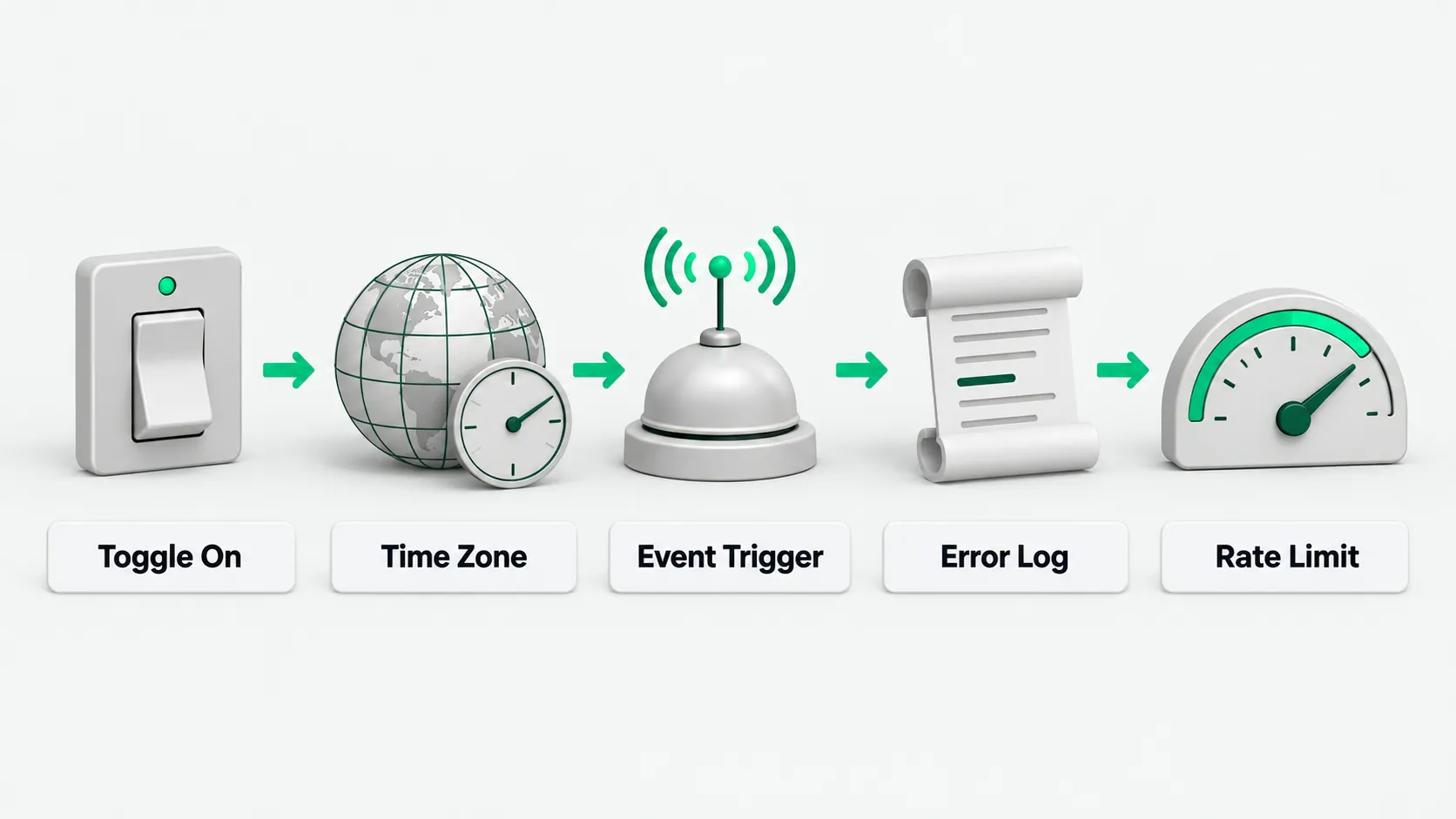
First check whether the switch is paused
According to the Cursor Help Center page on Routines, a Routine can run on a schedule, or when a Slack message, a GitHub, Linear, Sentry, or PagerDuty event, an email, or a webhook call arrives. All workflows run in the cloud and keep running when your laptop is closed. The most common reason a Grok Bot scheduled task does not run is that its switch is paused. If you are not yet sure what Grok Bot is or how a Bot keeps working in the cloud, start with What Is Grok Bot? An AI Agent Guide to Persistent Teammates.
Say the brand monitoring digest that runs every morning did not arrive. Check in order, and see Brand Monitoring on X with Grok Bot: What the Daily Digest Should Say and When to Escalate for the setup. On desktop, click the Bot’s name and find Routines under Details. A paused Routine shows Paused. Turn it back on with the switch. On mobile, find Routines on the Bot’s profile page. Turning off Active pauses it.
Confirm the time zone and next run time
According to the Cursor Help Center page on Routines, schedules use the Bot’s Timezone in Settings. Auto-detect follows your computer by default. To run on another location’s time, pick the time zone by hand. Grok Bot scheduled tasks use the time zone in Settings, not the time where you are.
Open the Routine and read the When to run text schedule. If it is wrong, choose Edit to change it. A new Routine does not run the moment you create it. It waits for the next scheduled time. If you create “every day at 8 a.m.” at 8:05, the first run is at 8:00 the next day. To try it right away, use Test. Test does real work. It changes files and uses connected apps, so give it safe inputs. A Routine without a Test button still runs on schedule.
Check event trigger conditions and webhook calls
According to the Cursor Help Center page on Routines, a Slack trigger requires the message to be new, in a watched channel, and matching the set keyword. Messages from before the trigger was created do not count.
A webhook has to return 200 and use the current key. A 200 only means the call was received and the run started. It does not mean the run finished, so check the Bot’s conversation. Any other status code means the run did not start. Confirm the Routine is not paused and the current key is in use. On mobile, Run history shows Running, Succeeded, or Failed, and a failure shows its reason. No record means nothing started it.
Read the run history and rate limit errors
According to the Cursor Help Center page on Routines, Routines have hourly limits. All Routines combined can run at most 300 times an hour, and a single Routine at most 200 times an hour. Going over returns “Automation run rate limit exceeded”. There is also a limit shared by all Grok Bot Routines. The docs call this a known issue that is being fixed. These failures do not retry automatically. Rerun the Routine yourself with Test, and resend the webhook once.
According to Grok Bot troubleshooting, check that the Routine is enabled, the schedule and time zone are right, its Bot still exists, plugins are authenticated, the cloud computer can reach the source system, and usage or the account is not suspended. Read the run history for the failure reason, and confirm the source channel, repository, and matching rules are valid.
According to the Cursor FAQ, approvals created by work you did not start in person, such as a Routine, expire after about thirty minutes. In a conversation you are present in, the approval waits for you. If runs get stuck on approvals, set clear allow rules. See Agent Safety Guardrails: When to Stop an Unattended Run. Day to day, you can turn on notifications or choose Always allow.
Routine not firing: FAQ
The webhook returned 200 but I see no result. What now?
A 200 only means Grok Bot received the call and started the run. It does not mean the run finished. Check the Bot’s conversation for the run details and the final result.
What do I do about “Automation run rate limit exceeded”?
The error means the hourly limit was exceeded. All Routines combined can run at most 300 times an hour, and a single Routine at most 200 times. These failures do not retry automatically. Rerun a Routine with Test. For a webhook, the source system has to resend it.
Grok Bot scheduled tasks run so often that usage runs out fast. What should I do?
Every run of a Grok Bot scheduled task uses up usage, so frequent runs drain it quickly. Hourly runs, short intervals, or triggers in a busy Slack channel can use a week’s allowance in one day. First pause what you do not need, then loosen the schedule or narrow the trigger conditions. Tasks that never ran use nothing. Test runs do count.