
AI Safety
Rolling Out Grok Bot at Work? Settle Access and Audit Settings First
Before enabling Grok Bot company-wide, decide who gets access, how approvals are enforced, and what the Audit Log and Action Recording each actually capture.

Before IT and security admins give colleagues enterprise access to Grok Bot, they need to settle two things: who can use it, and what they can trace if something goes wrong. The switch takes a day to flip. Access boundaries and audit scope are hard to retrofit afterward.
This note covers only the settings to decide before you click Enable in the Cursor enterprise dashboard. For how Grok Bot differs from an ordinary chat tool, see Grok Bot vs ChatGPT: A Cloud Teammate or Another Chat Window?.
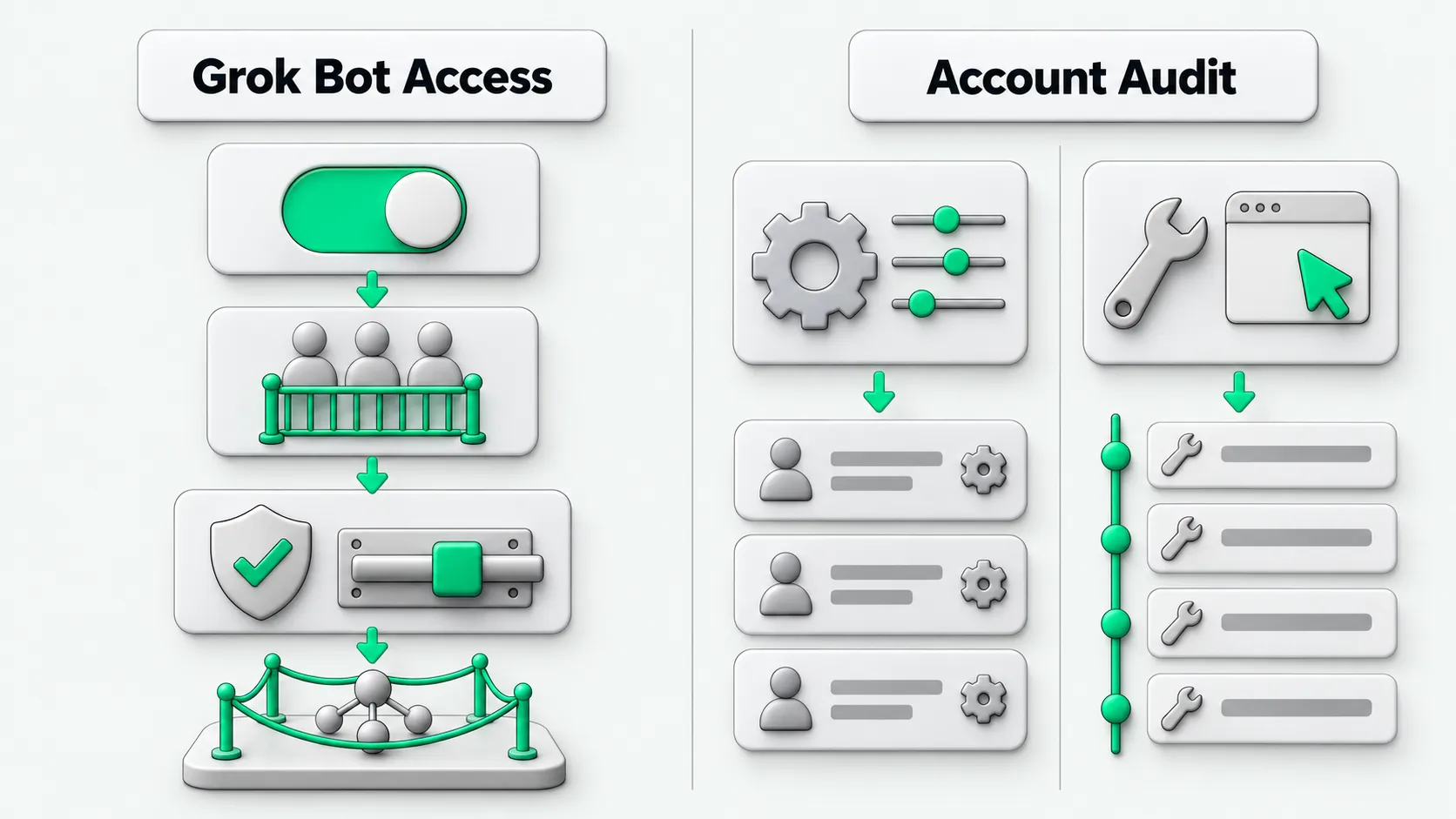
Six decisions before you enable it
Based on the official Teams and Enterprise docs and the security baseline:
- Who can use it: everyone, or specific groups (Enterprise uses Manage Group Access).
- Privacy mode: leave Privacy Mode (Legacy) first. It blocks Grok Bot across the whole workspace.
- Approvals: turn on Enforce Auto-review, then add team Ask first rules covering outbound email, payments, production deploys, and accepting legal terms.
- Network: configure Network Controls. With no policy set, everything is allowed by default.
- Local execution: set Execution on Local Computer to Never allow, unless the Bot actually needs to act on members’ own machines.
- Audit scope: separate the Audit Log (control plane) from Action Recording (tool actions). Action Recording is off by default and does not appear on the Audit Log page.
Review connectors in the Teams Marketplace first as well. Any connector you allow is available to every Bot a member owns. For the organizational risk of scattered accounts and no single entry point, see Why Companies Shouldn’t Just Buy Individual AI Accounts.
Teams vs Enterprise
| Item | Teams | Enterprise |
|---|---|---|
| Available by default | On for all members | Admin enables it in the dashboard |
| Organization-wide switch | None | Yes; turning it off blocks members but does not delete their computers |
| Group-based access | None | Manage Group Access |
| Network Controls / Enforce Auto-review / Action Recording / Audit Log | Not in self-serve Teams | Available |
On Teams, members can use Grok Bot as soon as they join the team. Admins have no switch to turn it off for the whole company first. Organization-level enablement, groups, network policy, and enforced approval require Enterprise.
The Bot has no identity of its own
The official security docs state that a Bot has no identity or credentials of its own. It acts as the signed-in member, its permissions never exceed that member’s, and every action can be attributed to a specific person. Connector OAuth tokens stay in Cursor’s backend. The Bot cannot read the plaintext token when it calls a tool.
Sign-ins, two-factor verification, and payment confirmations are handed back to the member. To revoke access, remove the member from the team or turn off Grok Bot for their group, then revoke their sessions in your identity provider. Terminating the computer alone does not revoke access.
Read access can be broad while write actions need approval first. The same approach is covered in AI Agent Permissions: Reading Email Is OK. Does Sending Need Approval?.
Approvals and network: the official baseline
For deployments with strict security requirements, the official guidance is that admins do at least the following:
- Configure Network Controls.
- Review the connector policy before enabling.
- Turn on Enforce Auto-review, then configure team Auto-review rules.
- Set Execution on Local Computer to Never allow when there is no local need.
- Turn off Cloud Agent when delegated coding is not needed.
- Keep public template sharing off.
- Make team Ask first rules cover production deploys, outbound email, payments, and accepting legal terms.
For members: do not paste credentials into ordinary chats; prefer Allow once for anything involving accounts, money, or shared resources; sign out of sites you no longer need when a task ends.
Multiple Bots under one user share one cloud computer. How files and sign-in state are isolated is covered separately in Do Grok Bots Share Files? Isolating Bots on One Cloud Computer.
Two audit lines: control plane and tool actions
Audit Log (Enterprise)
Records admin, security, and authentication events, plus Grok Bot control-plane changes: enabling and disabling (sand_onboarding), Bot creation (grok_bot_created), member access changes (grok_bot_access_changed), MCP authentication (mcp_authentication), Routine changes (grok_bot_routine), and more. The dashboard can filter by application. Streamed events carry application_type, which is grok_bot for Grok Bot, so you can route them into a SIEM.
Action Recording (Enterprise, off by default)
Records which tool actions the Bot took: redacted shell commands, connector calls, browser navigation metadata, routine runs, and similar. These events do not appear on the Audit Log page. To collect them in your own logging system, configure OpenTelemetry export; events carry cursor.surface=grok_bot. The security docs state 90-day internal retention. Privacy Mode (Legacy) forces it off.
To see who changed permissions, who created a Bot, or who connected an MCP server, check the Audit Log. To see which tools a Bot called during a given task, turn on Action Recording first, then export over OpenTelemetry.
For brand monitoring with the Bot after rollout, including what the daily digest covers and when to call a person, see Brand Monitoring on X with Grok Bot: What the Daily Digest Should Say and When to Escalate.
Grok Bot enterprise access: FAQ
Can Teams turn off Grok Bot for the whole organization?
Self-serve Teams has no organization-wide switch, and Grok Bot is available to all members by default. Enterprise admins can enable or disable it on the Grok Bot page; disabling blocks members but does not delete their computers. Grok Bot is unavailable under Privacy Mode (Legacy).
Does the Audit Log show which web pages the Bot opened or which commands it ran?
No. The Audit Log records control-plane, admin, and security events. Tool actions require Action Recording with OpenTelemetry export, and they do not appear on the Audit Log page.
After enabling it, what should account audits line up first?
Three things: which accounts or groups have Grok Bot; whether Enforce Auto-review and Ask first rules lock down outbound sends, payments, and deploys; and whether the Audit Log can be filtered by grok_bot, whether to stream it to a SIEM, and whether to turn on Action Recording separately. Without a single account entry point, audits are hard to close out; see Why Companies Shouldn’t Just Buy Individual AI Accounts.